

- Match your symptom first
- Before you start: back up the original card
- Step 1: Charge it the right way
- Step 2: Check the microSD card
- Signs the card is failing
- Flash a fresh card
- Step 3: Black screen after a firmware change? Fix the .dtb
- Step 4: Red light or "Can't find any systems"? Check for a clone
- Step 5: When it's probably the hardware
- Bought your R36S from us?
- R36S black screen FAQ
- How do I reset my R36S?
- Why is my R36S blinking red?
- Can a bad SD card cause a black screen?
- Why does my R36S say "Can't find any systems"?
- Find your R36S Console
Short answer
Before writing off an R36S stuck on a black screen, check the microSD card and firmware, the causes the community wiki documents most. Give it several hours on a charger with a USB-A to USB-C cable, reseat the card in the right-hand OS slot, then flash a branded card. A blinking red light on standard ArkOS points to a clone.
Match your symptom first
Find the line that fits, then jump to the step it points to. Steps 1 and 2 cost nothing, so don't skip them.
| What you see | Likely cause | Start at |
|---|---|---|
| Nothing at all: no light, no screen | Flat battery, or no readable card in the OS slot | Steps 1 and 2 |
| Black screen and a red light blinking | Standard ArkOS or AmberELEC flashed on an EmuELEC clone | Step 4 |
| Black screen right after flashing or updating firmware | A .dtb file that doesn't match your screen panel, or a first boot still running | Steps 2 and 3 |
| "Can't find any systems" | An EmuELEC clone starting without a usable card | Step 4 |
| Stuck on the boot logo, or "booting fail! check kernel and dtb images!" | A failing or corrupted SD card | Step 2 |
| A small blinking cursor | It can't read the games card in the TF2 slot | Step 2 |
| White lines and a "voltage level low" message | Empty battery | Step 1 |
| Shuts off during play, even when charged | Not documented by the wiki | Steps 1 and 5 |
Before you start: back up the original card
Do this first
The wiki's getting-started guide puts this first: copy the whole stock card to your computer before changing anything. The file that matters most sits in the BOOT partition, rk3326-r35s-linux.dtb (on some units rk3326-rg351mp-linux.dtb). It matches the system to your screen, and Step 3 may need it.
Keep the stock card even once you've replaced it. If you bought from us and end up sending the console back, our return policy asks for the accessories, SD card included.
Step 1: Charge it the right way
A flat battery looks exactly like a dead console. The wiki recommends a 5V adapter rated 1.5 to 2A with a USB-A to USB-C cable, like the one in the box. A computer's USB port also works.
Give it several hours before you judge it: the wiki's step-by-step black screen guide starts there. The battery is 3000 or 3200 mAh depending on the batch. The French Ubuntu documentation page on the R36S adds one rule worth keeping: charge to 100% before any update.
White lines across the screen with a "voltage level low" message mean the same thing. The battery is empty, so plug it in and wait.
Step 2: Check the microSD card
The R36S has no internal storage. The system runs from the card in the right-hand slot (TF1), and the left slot (TF2) holds games. With no readable card on the right, an original R36S has nothing to start.
Power off, take the card out, check that it sits flat and clicks in, and try again. If that changes nothing, suspect the card. The wiki is blunt about stock cards: cheap, unreliable, able to corrupt at any moment. It advises swapping them for a branded card early.
“booting fail! check kernel and dtb images!”
Signs the card is failing
- The console hangs on the boot logo.
- The logo shows "booting fail! check kernel and dtb images!".
- It freezes while EmulationStation loads.
- Themes keep disappearing.
- A small cursor blinks: it is looking for the TF2 games card. A defective TF2 card is the usual culprit, but the wiki also lists a wrong card setting and recent upgrades.
Flash a fresh card
Write the firmware image to a new branded card. Decompress it first: the file you flash should not end in .xz. The wiki suggests Rufus, Win32DiskImager or ApplePi-Baker, and advises against balenaEtcher. Our R36S firmware guide helps you pick a system.
Be patient
Then be patient. On the first boot, leave the console on for about 10 minutes even if the screen stays black, because it is still expanding the system. Switch it off too early and the install gets corrupted, so you start again from scratch.
Step 3: Black screen after a firmware change? Fix the .dtb
This is the classic R36S black screen. The console has shipped with at least five different screen panels, and each one needs the right device tree file (.dtb) in the BOOT partition. With the wrong file, the system may run while the screen stays dark.
The wiki's fix for the ArkOS community image:
The wiki's procedure
- Flash the image to your new card. Don't boot it yet.
- Open the card's BOOT partition on your computer.
- Delete the files with dtb in their name, plus any .tony or .orig files.
- Copy in the .dtb files and the boot.ini file from your stock card backup.
- Put the card back in the right-hand slot and switch on.
No backup? The wiki links a GitHub repository of dtb files sorted by panel. Copy one panel set at a time, starting with the newest, and test after each. Still black? Try the "Panel 4 (V5)" version of the image, another card or another flashing tool. Our R36S update guide covers updating safely.
Step 4: Red light or "Can't find any systems"? Check for a clone
Since August 2024, the wiki has tracked "EmuELEC" clones: different hardware inside an R36S-style shell. They can't run standard ArkOS or AmberELEC. Flash either one and you get this exact symptom, a black screen with a red light blinking.
Look at your stock card. Any of these .dtb files means a clone: rf3536k3ka.dtb, rf3536k4ka.dtb or rk3326-evb-lp3-v12-linux.dtb. So does a partition called EMUELEC or EEROMS instead of EASYROMS. Other tells: it boots without a card, and RetroArch reports 497 MB of memory. Our clone vs original guide lists the physical checks.
The fix is firmware built for clones, on a new card:
Firmware made for clones
- ArkOS for K36 and R36S clones, maintained by AeolusUX and available since December 19, 2024. Use one card for both system and games: the wiki says a two-card setup doesn't work properly with it.
- ROCKNIX: the wiki says its "b" build runs on these clones, with a tool that patches the dtb file.
Two edge cases. A clone on its EmuELEC firmware that boots to a black screen with a blue light: the wiki says to move the card from the right slot to the left one. And a clone with internal storage and the weaker RK3128 chip can't use those clone images at all.
Would rather not run clone firmware? Replace it with an R36S from our supplier's “Dual Chip Original” line: $79.99 with a 64 GB card, 30-day returns.
Step 5: When it's probably the hardware
Several hours on a known-good charger, a freshly flashed branded card in the right slot, and still no sign of life? Then you've covered what software can fix. The battery, the charging port or the board remain, and no reflash reaches them.
The same goes for a console that cuts out mid-game on a full charge. The wiki doesn't document that case, so we won't guess at a home fix. Contact the seller, and give the symptom, the light color and what you've already tried.
Bought your R36S from us?
Support and returns
Email contact@r36s-console.com with the symptom, the light color and the steps you tried. Every R36S console we ship comes with a 30-day warranty and 30-day returns from the day you receive it.
For a defect, a shipping error or a non-conforming item, we send a prepaid return label. Otherwise, return shipping is on you. Keep the USB-C cable, SD card and manual, and back up the stock card before you reflash a unit you might return.
R36S black screen FAQ
How do I reset my R36S?
The wiki documents no factory reset combo: the system lives on the SD card, so a full reset means reflashing it. Shut down from the menu or with FN + Power, never by quitting a game with the reset button (a known cause of lost saves). Stuck in RetroArch? Restart holding B to open ArkOS's Boot and Recovery Tools and pick EmulationStation.
Why is my R36S blinking red?
Per the Handhelds wiki, a red light blinking at boot over a black screen happens when standard ArkOS or AmberELEC runs on an EmuELEC clone. Look on your stock card for rf3536k4ka.dtb, rf3536k3ka.dtb or rk3326-evb-lp3-v12-linux.dtb. If one is there, put clone firmware, such as ArkOS for K36 clones, on a new card.
Can a bad SD card cause a black screen?
Yes. The R36S has no internal storage, so it runs entirely from the card in the right-hand slot. The wiki ties a failing card to boot logo hangs, freezes while loading and the message "booting fail! check kernel and dtb images!". It calls stock cards cheap and unreliable, and recommends replacing them with a branded card.
Why does my R36S say "Can't find any systems"?
The wiki lists this message as a sign of an EmuELEC clone, which can start without an SD card and then shows this error. Its fix is to install firmware made for R36S clones onto a new card. Before flashing, check the stock card's .dtb files and partition names, and see our clone guide for the physical differences.
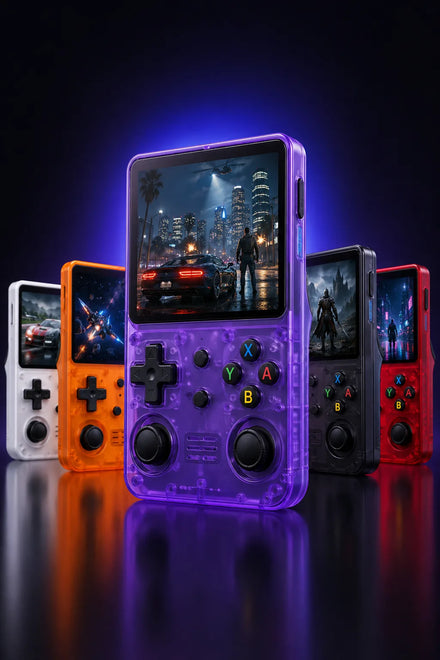
Find your R36S Console
Explore the 3.5-inch IPS handheld, compare 64GB and 128GB options, and check delivery information for your destination.
