
The R36S is a great device out of the box. But flashing a custom OS turns it into a completely different beast. Better performance, cleaner menus, more features, and a level of customization the stock firmware can't touch.
I've tested every major custom OS available for the R36S, and I'm going to walk you through each one: what it does, who it's for, and how to install it. Whether you're a total beginner or a firmware-flashing veteran, this guide has you covered.
Stock OS vs Custom Firmware: What's the Difference?
The R36S ships with a basic Linux-based operating system preloaded on the SD card. It works, boots fast, and gets you playing games immediately. So why would you replace it?
A few reasons:
- Performance: Custom firmwares use better-optimized emulators. Games that stutter on stock might run perfectly on ArkOS.
- Interface: Stock menus are functional but ugly and clunky. Custom OSes look better and navigate faster.
- Features: Save states, rewind, fast-forward, shaders, bezels, RetroAchievements support, all absent or limited on stock.
- Updates: Custom firmware communities actively push updates with bug fixes and new features. Stock firmware is abandoned by the manufacturer.
- Game compatibility: Better emulator cores means more games work, especially for N64 and PSP.
The only downside? You need to spend about 15-20 minutes setting it up. That's it. No soldering, no hardware mods, no risk of bricking your device. If something goes wrong, you just reflash the SD card and you're back to square one.
The Big Four: ArkOS, muOS, MinUI, and Knulli
There are four custom operating systems worth considering for the R36S. Each has a different philosophy and target user. Here's the breakdown:
| OS | Philosophy | Best For | Difficulty |
|---|---|---|---|
| ArkOS | Full-featured, highly customizable | Most users, tinkerers | Easy |
| muOS | Clean, fast, community-driven | Users who want polish + speed | Easy |
| MinUI | Absolute minimalism | Kids, "just play" users | Very Easy |
| Knulli | Batocera-based, feature-rich | Users from PC emulation | Medium |
ArkOS: The Gold Standard
ArkOS is the most popular custom firmware for the R36S, and for good reason. It strikes the perfect balance between features and usability. If you're unsure which OS to install, start here.
What You Get
- EmulationStation frontend: Beautiful game browser with box art, descriptions, and ratings
- RetroArch backend: Access to dozens of emulator cores with per-game settings
- Save states: Save and load anywhere in any game, up to 10 slots per game
- Rewind: Made a mistake? Hold the rewind button to undo the last few seconds
- Fast-forward: Speed through grinding in RPGs at 2-4x speed
- Shaders: CRT scanline effects, LCD grids, and smoothing filters
- Themes: Hundreds of community-made themes to customize your UI
- PortMaster: Play PC indie games (Cave Story, Stardew Valley, etc.) natively
- RetroAchievements: Earn achievements for retro games (requires WiFi dongle)
How to Install ArkOS
The installation process is straightforward. Here's the step-by-step:
- Download the image: Go to the ArkOS GitHub releases page and download the latest image for the R36S (look for "RK3326" in the filename)
- Get a flashing tool: Download and install balenaEtcher (free, works on Windows/Mac/Linux)
- Prepare your SD card: Use a quality micro SD card, 32GB minimum (I recommend 128GB for a larger game library). SanDisk Ultra or Samsung Evo are solid choices.
- Flash the image: Open balenaEtcher, select the ArkOS image file, select your SD card, click Flash. This takes 3-5 minutes.
- First boot: Insert the SD card into the R36S (slot 1, the one closest to the screen), power on, and wait. First boot takes 2-3 minutes as ArkOS configures itself.
- Add your games: Power off, remove the SD card, plug it into your computer. Copy ROM files into the appropriate console folders. Put it back in the R36S.
- Scrape metadata (optional): In EmulationStation, use the built-in scraper to download box art and game descriptions. Makes the game list look amazing.
Total time from start to playing: about 15-20 minutes, most of which is waiting for the flash and copying games.
The R36S comes preloaded with 20,000+ games. Custom firmware just makes it even better.
muOS: The Sleek Alternative
muOS is newer than ArkOS but has quickly built a dedicated following. It's fast, it's clean, and the development team pushes updates frequently. Think of it as ArkOS with a slightly different personality: less customization depth, but a more polished out-of-the-box experience.
What Sets muOS Apart
- Blazing fast boot: muOS boots in about 5 seconds, significantly faster than ArkOS
- Clean default theme: The UI looks modern and consistent without needing to install a custom theme
- Simplified settings: Configuration is streamlined. Less overwhelming for newcomers.
- Excellent N64 performance: muOS has spent significant effort optimizing N64 emulation specifically
- Active Discord community: The devs are responsive and updates come frequently
ArkOS vs muOS: Which One?
Honestly, both are excellent. Here's my quick decision framework:
- Want maximum customization and features? ArkOS
- Want the fastest, cleanest experience with less fiddling? muOS
- Care about N64 performance specifically? muOS has a slight edge
- Want the largest community and most tutorials? ArkOS
Installation for muOS follows the exact same process as ArkOS: download image, flash with balenaEtcher, boot, add games.
MinUI: The Zen Option
MinUI is for people who want to turn on their handheld and play a game. That's it. No themes, no achievements, no shaders, no settings menus with 47 options. Just games.
The interface is a simple list of consoles. You pick a console, you pick a game, you play. Save states work. That's the entire feature set. And honestly? For a lot of people, that's all they need.
MinUI is particularly great for kids. There's nothing to accidentally break, no settings to get lost in, and the simplicity means a 5-year-old can navigate it independently. It's also the lightest OS, which means the best battery life.
The downside is obvious: if you want any customization whatsoever, MinUI isn't for you. No box art, no game descriptions, no themes, no fast-forward, no shaders. It's deliberately minimal.
Knulli: The Power User's Choice
Knulli is based on Batocera, a well-established emulation distribution from the PC world. If you've set up a retro gaming PC before, Knulli will feel very familiar.
It offers the most features of any custom OS for the R36S, including built-in WiFi configuration (if you have a USB dongle), Bluetooth support, RetroAchievements, and extensive per-system configuration. The trade-off is complexity: there are more settings, more potential for something to go wrong, and the learning curve is steeper.
I'd recommend Knulli for users who are already comfortable with emulation and want maximum control. For first-time custom firmware users, ArkOS or muOS are better starting points.
Themes and Customization
One of the best parts of running a custom OS is making the device truly yours. ArkOS and muOS support extensive theming through EmulationStation, and the community has created hundreds of themes.
Popular Theme Styles
- Art Book: Full-screen game artwork as backgrounds, clean metadata displays
- Carbon: Minimalist dark theme with colored accents, low visual noise
- Colorful: Bright, playful themes with large icons. Great for kids.
- CRT/Retro: Themed to look like old-school TVs and arcades
- Magazine: Game information displayed like a magazine spread
Installing Themes
For ArkOS and muOS, themes are usually ZIP files that you extract into the themes directory on your SD card. EmulationStation picks them up automatically, and you can switch between installed themes from the UI settings menu.
Some themes support dynamic collections, recently played lists, and favorites. The best themes transform the entire feel of the device, turning a simple game browser into something that looks genuinely premium.
Performance Optimization Tips
Once you have your custom OS installed, here are some tweaks that can squeeze extra performance out of your R36S:
General Tips
- Use a fast SD card: Class 10 / UHS-I minimum. A slow card causes stuttering during game loading.
- Keep your OS updated: New releases often include emulator updates with performance improvements
- Close background processes: Some custom OSes run services you don't need. Disabling WiFi scanning (if no dongle) saves CPU cycles.
N64 Optimization
- Switch to the parallel-n64 core in RetroArch for better compatibility
- Set resolution to native (320x240) instead of upscaled
- Disable texture filtering for a speed boost
- Enable frame skip if a game is borderline playable
PSP Optimization
- Use PPSSPP standalone rather than the RetroArch core
- Set rendering resolution to 1x (native PSP)
- Enable frameskip at 1-2 frames
- Disable post-processing effects
Want the Best R36S Experience?
Start with the hardware, then upgrade the software. The R36S + ArkOS is the unbeatable combo for retro gaming.
Order Your R36S →Free shipping • 30-day returns • 20,000+ games included
Troubleshooting Common Issues
Device won't boot after flashing
Most likely a bad flash. Re-download the image, use a different SD card reader, and try again. Make sure you're using the correct image for the R36S (not a different device).
Games not showing up
Check that ROM files are in the correct console folder and in a supported format. ArkOS expects specific folder names, such as "snes" for SNES games and "psx" for PS1. The folder structure is documented in the OS wiki.
Audio crackling or popping
Usually a buffer size issue. In RetroArch settings, increase the audio buffer size. If using a specific emulator core, try switching to an alternative core for that system.
Save states not working
Make sure you have write permissions on the SD card and enough free space. Some games have known save state issues with specific cores. Check the community forums for your OS for known incompatibilities.
Frequently Asked Questions
Will I lose my preloaded games if I flash a custom OS?
Yes, flashing overwrites everything on the SD card. Back up any saves you want to keep. You'll need to add your own games to the new OS. The preloaded games aren't lost forever though: you can always reflash the original stock firmware if you want them back.
Can I brick my R36S by flashing custom firmware?
No. The R36S boots from the SD card, not from internal storage. If a flash goes wrong, just reflash the SD card. The device itself is unaffected. You literally cannot brick it through software.
Which SD card should I buy?
SanDisk Ultra 128GB is the sweet spot. Big enough for a massive game library, fast enough for smooth performance, and reliable. Avoid no-name brands from Amazon: fake capacity cards are common and will corrupt your data.
Do I need WiFi for custom firmware?
No. WiFi is only needed for RetroAchievements and scraping game metadata online. Everything else works completely offline. If you want WiFi, you can use a small USB WiFi dongle via the USB-C port with an OTG adapter.
How often should I update my custom OS?
Check for updates every month or so. Major updates bring performance improvements and new features. You can update in place (without losing your games) on most custom OSes by following the update instructions in their documentation.
Can I switch between custom OSes easily?
Yes. Keep multiple SD cards flashed with different OSes. Swap the card, boot, and you're running a different OS. This is a great way to try them all before committing to one.
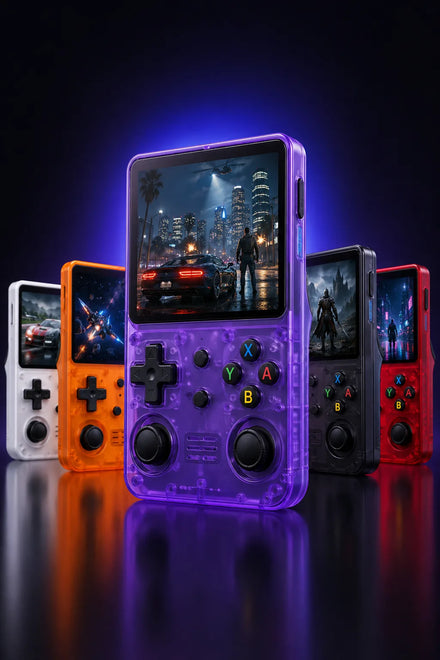
Prêt à jouer à 15 000+ jeux rétro ?
La R36S arrive prête à jouer avec 15 000 jeux. Livraison gratuite et suivie, partout dans le monde.
