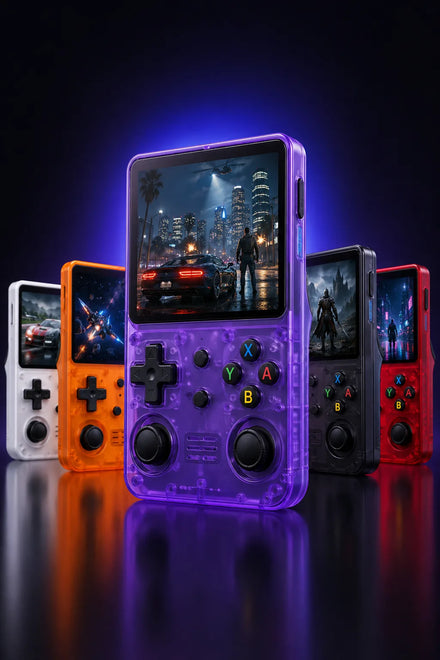
So you've got your R36S, you've been playing the preloaded games, and now you want to add your own. Maybe there's a specific title that's missing from the collection, or maybe you want to organize your library your way. Either way, adding games to the R36S is surprisingly simple once you understand the folder structure.
This guide covers everything: SD card setup, where to put files, the correct file formats for each console, save states, and troubleshooting the common issues people run into. I've helped dozens of people through this process, so I know exactly where things tend to go sideways.
What You'll Need
Before we start, gather these items:
- Your R36S (powered off)
- A computer (Windows, Mac, or Linux all work)
- An SD card reader (many laptops have one built in; USB adapters cost $5-10)
- ROM files for the games you want to add (more on this below)
- 10-30 minutes depending on how many games you're adding
Important Note on ROMs
Before we go further: ROM files are digital copies of game cartridges and discs. The legal stance on ROMs is straightforward. Downloading ROMs of games you don't own is technically piracy. The widely accepted ethical guideline is that you should only use ROM files for games you already own physical copies of.
We won't link to ROM sites or provide ROM files. A quick web search for the game name + "ROM" will point you in the right direction. That said, many retro games are also available through legitimate channels like the Nintendo eShop, PlayStation Store, or through official compilations on modern consoles.
Understanding the SD Card Setup
The R36S has two micro SD card slots:
- Slot 1 (TF1): Closest to the screen. This holds the operating system. On stock firmware, it also holds your games.
- Slot 2 (TF2): Further from the screen. This is for additional game storage. Optional but useful for large libraries.
Stock Firmware Setup
If you're using the original firmware that came with the R36S, everything, OS and games, lives on the card in Slot 1. When you remove this card and plug it into your computer, you'll see the game folders directly.
Custom Firmware Setup (ArkOS/muOS)
If you've installed a custom OS, the setup depends on whether you're using one card or two:
- Single card: OS partition + games partition on the same card. Your computer will show the games partition as a separate drive.
- Dual card: OS on Slot 1, games on Slot 2. Remove the Slot 2 card for adding games. This is the recommended setup because it keeps your OS safe if you need to swap game cards.
The R36S comes with 15,000+ games preloaded. Add your own favorites on top of that.
Step-by-Step: Adding Games
Step 1: Power Off and Remove the SD Card
Always power off the R36S completely before removing the SD card. Don't just put it to sleep. Hold the power button for 3 seconds and select "Shut Down" from the menu. Then gently push the SD card in to release it (it's a push-push mechanism).
Step 2: Insert the SD Card Into Your Computer
Use your laptop's built-in card reader or a USB adapter. The card should appear as a removable drive on your computer. On Windows, it'll show up in File Explorer with a drive letter. On Mac, it'll appear on your desktop or in Finder.
Step 3: Navigate to the Game Folders
You'll see a folder structure organized by console. The exact folder names depend on your firmware. Here are the common ones:
| Console | Folder Name (ArkOS) | Folder Name (Stock) | ROM Format |
|---|---|---|---|
| NES | nes | FC or NES | .nes, .zip |
| SNES | snes | SFC or SNES | .sfc, .smc, .zip |
| Game Boy | gb | GB | .gb, .zip |
| Game Boy Color | gbc | GBC | .gbc, .zip |
| Game Boy Advance | gba | GBA | .gba, .zip |
| Sega Genesis | genesis | MD | .md, .bin, .zip |
| PlayStation 1 | psx | PS | .bin/.cue, .pbp, .chd |
| N64 | n64 | N64 | .n64, .z64, .v64 |
| PSP | psp | PSP | .iso, .cso |
| Arcade (MAME) | mame | MAME or ARCADE | .zip (specific ROM sets) |
| Neo Geo | neogeo | NEOGEO | .zip |
Step 4: Copy Your ROM Files
Simply drag and drop your ROM files into the correct folder. That's it. No renaming, no converting, no special process. The emulators will find them automatically the next time you boot up.
A few tips:
- ZIP files are fine: Most emulators can read compressed ROM files directly. This saves SD card space.
- PS1 games: If using .bin/.cue format, keep both files together in the same folder. For better compatibility and smaller file sizes, convert to .chd or .pbp format.
- Subfolders are OK: You can organize games into subfolders within each console directory (e.g., psx/RPGs/, psx/Racing/). The emulator will scan subdirectories.
- No special characters: Avoid using characters like &, #, %, or non-English characters in file names. Stick to letters, numbers, spaces, and dashes.
Step 5: Safely Eject and Reinsert
Before removing the SD card from your computer, always use "Safely Eject" (Windows) or "Eject" (Mac). Pulling the card without ejecting can corrupt files. Insert it back into the R36S and power on.
Step 6: Refresh Your Game List
On stock firmware, new games appear automatically after a reboot. On ArkOS, you may need to update the game list: go to the main menu, press Start, select "Update Game List." Your new games should now appear under their respective console sections.
PS1 Games: The Complete Guide
PS1 deserves its own section because the file formats can be confusing. Here's what you need to know.
File Formats Explained
- .bin + .cue: The original dump format. The .bin file contains the game data, and the .cue file tells the emulator how to read it. You need BOTH files. If you only have the .bin, the game might not boot or might have missing audio.
- .pbp: A compressed format originally designed for the PSP. Smaller files, single-file format (no .cue needed), works great on the R36S. This is my recommended format for PS1 games.
- .chd: MAME's compressed format, also excellent for PS1. Good compression, single file, fast loading. The other recommended format.
- .iso: Sometimes works, sometimes doesn't. Not recommended for PS1 on the R36S.
Multi-Disc Games
Some PS1 RPGs span multiple discs (Final Fantasy VII has 3 discs, for example). For these games, you need to create an .m3u file, which is just a text file listing each disc:
- Put all disc files in the same folder
- Create a new text file named after the game:
Final Fantasy VII.m3u - Inside the file, list each disc on its own line:
Final Fantasy VII (Disc 1).chd Final Fantasy VII (Disc 2).chd Final Fantasy VII (Disc 3).chd
- The emulator will use the .m3u file as the game entry and let you swap discs from the RetroArch menu when prompted in-game
Start Your Retro Gaming Collection
15,000+ games preloaded. Add unlimited more. One device, decades of gaming history.
Order Your R36S →Free shipping • 30-day returns • 15,000+ games included
Save States vs In-Game Saves
Understanding the difference between these two save systems will prevent a lot of frustration.
In-Game Saves
These are the saves created by the game itself, like saving at a save point in Final Fantasy or a save room in Resident Evil. These saves are stored in .srm files (or similar) in a saves folder. They persist even if you change emulator cores or firmware.
Save States
Save states are snapshots of the emulator's memory at a specific moment. You can save and load at ANY point, not just at save points. This is incredibly useful for difficult sections or for saving mid-conversation in an RPG.
However, save states are tied to the specific emulator core you're using. If you switch cores, your save states won't work. Always maintain an in-game save alongside your save states as a backup.
How to Use Save States on the R36S
- Save: While playing, press the hotkey combo (usually Select + R1) to open the RetroArch menu. Go to Save State, choose a slot (0-9), and confirm.
- Load: Same process but select Load State instead.
- Quick save/load: On ArkOS, you can use Select + R1 (quick save) and Select + L1 (quick load) without opening the menu.
Managing a Large Game Library
If you're planning to load hundreds or thousands of games onto your R36S, here are some organization tips:
Use Favorites
On ArkOS/muOS, you can mark games as favorites (usually by holding a button on the game in the list). This creates a Favorites section that appears at the top of your menu. I keep about 30 games in my favorites list for quick access.
Delete Games You Won't Play
Having 15,000 games sounds great until you spend 20 minutes scrolling through NES ROMs you'll never touch. Curate your library. A focused collection of 500 great games provides a much better experience than 15,000 games you'll never find anything in.
Use Subfolders
Organize PS1 games by genre (RPG, Racing, Action, Fighting). Organize NES/SNES games alphabetically. Whatever system works for you. Subfolders are displayed as navigable directories in most custom firmwares.
Convert PS1 Games to CHD
A typical PS1 .bin file is 400-700MB. The same game in .chd format is 200-400MB. If you have 100 PS1 games, that's a savings of 20-30GB. Use the chdman tool (free, included with MAME) to convert.
Troubleshooting
Games don't appear after adding them
Make sure the files are in the correct console folder, use the correct ROM format for that console, and refresh the game list (ArkOS: Start > Update Game List). Also check that you're adding to the correct SD card if using a dual-card setup.
A game boots to a black screen
Try a different ROM file. Some dumps are bad or incompatible. Also check if the game requires a BIOS file (some PS1 and arcade games do). BIOS files go in the bios folder on your SD card.
PS1 game has no audio
If using .bin format, you're probably missing the .cue file. The .cue file contains audio track information. Without it, CD audio (music) won't play, though sound effects usually still work. Convert to .chd or .pbp to avoid this issue entirely.
Arcade/MAME games don't work
MAME games are version-specific. A ROM set made for MAME 2003 won't work with a MAME 2010 core. Check which MAME version your firmware uses and make sure your ROM set matches. On ArkOS, the default is usually FinalBurn Neo or MAME 2003-Plus.
SD card is full
Time for a bigger card, or time to convert your PS1 games to compressed formats. A 128GB card comfortably holds the entire NES, SNES, GBA, Genesis, and a generous PS1 library. For everything including PSP and N64, consider 256GB.
Games are in the wrong section
The emulator determines the section based on which folder the ROM is in, not the file extension. A .smc file in the nes folder will show up under NES. Move it to the correct console folder.
Frequently Asked Questions
How many games can the R36S hold?
Depends on your SD card size and what consoles you're loading. NES/SNES/GBA games are tiny (under 10MB each), so a 32GB card holds thousands. PS1 games are 200-700MB each. PSP games are 500MB-1.5GB. A 128GB card is the sweet spot for most people.
Can I use the same SD card on a different handheld?
The OS partition is device-specific, but game files are universal. If you switch to a different handheld running ArkOS, you can reuse the same games SD card in most cases.
Do I need to format a new SD card before using it?
If you're flashing a custom OS image, the flash process handles formatting. If you're adding a second SD card just for games, format it as FAT32 (for cards 32GB and under) or exFAT (for 64GB and above).
Can I add games wirelessly?
Not without a WiFi dongle, and even then, transferring files over WiFi is painfully slow compared to a direct SD card connection. Just pull the card out and use your computer. It's faster.
Will adding more games slow down my R36S?
No. Games are loaded one at a time from the SD card. Having 100 or 10,000 games makes no difference to performance. The only thing that slows down is browsing the game list, which is why organizing into subfolders and using favorites is important.

Ready to play 15,000+ retro games?
The R36S comes pre-loaded and ready to go. Ships free from our EU warehouse.